

WiFi Calling: Everything You Need to Know
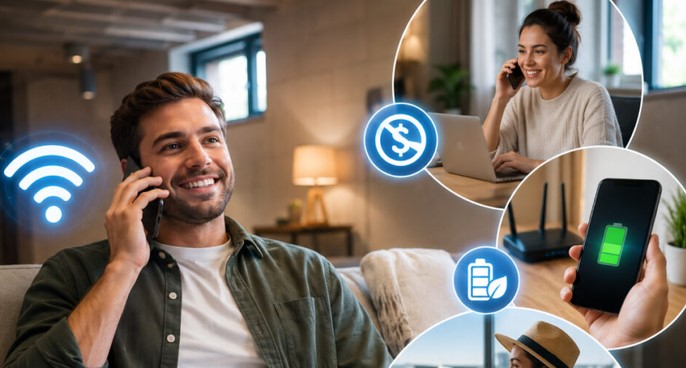
Source:https://blogs.esim.place
The Dead-Zone Nightmare in Modern Buildings
Picture this: You are standing in the basement level of a state-of-the-art medical clinic, waiting for a critical call regarding an urgent medical telemetry software deployment. You look down at your phone, and there it is—the dreaded “No Service” icon accompanied by zero signal bars.
Modern architectural materials like reinforced concrete, low-emissivity (Low-E) glass, and heavy steel beams are fantastic for energy efficiency and structural integrity, but they act like a giant Faraday cage against cellular signals.
A decade ago, fixing this dead-zone problem required installing bulky, expensive cellular repeaters or microcells that cost thousands of dollars. Today, the solution is already sitting quietly inside your smartphone settings. It’s called WiFi calling, and it is one of the most underrated, transformative communication technologies available to us.
What Exactly Is WiFi Calling? (Without the Tech Jargon)
When people hear the term WiFi calling, they often confuse it with third-party messaging apps like WhatsApp, Skype, or Zoom. While those platforms let you talk over the internet, they require both parties to have the same app installed.
WiFi calling works fundamentally differently. It routes your standard cellular phone call and text messages through a local wireless internet network instead of relying on nearby cell towers. Your phone number stays exactly the same, and the person on the other end has no idea you aren’t using a traditional cellular connection.
Let’s use a simple analogy to make this crystal clear.
Imagine sending a physical letter across the country.
-
Traditional Cellular Calling is like dropping your letter into a standard postal mailbox outside on the street. If the mail truck can’t reach that mailbox due to a road closure (weak signal), your letter sits there stuck.
-
WiFi Calling is like hand-delivering your letter directly to a private, high-speed pneumatic tube inside your office building that shoots it straight to the central post office.
In both cases, the letter reaches its final destination through the standard postal system, but the route it took to leave your building was entirely different.
How WiFi Calling Works Under the Hood
Having spent over 10 years optimizing digital networks across enterprise environments, I’ve seen firsthand how cellular protocol integration has evolved. To appreciate why WiFi calling feels so seamless, we need to peek briefly behind the technical curtain.
When you toggle on the feature, your smartphone creates a secure, encrypted tunnel directly to your mobile carrier’s core network over your local internet connection.
Here is the step-by-step technical breakdown:
-
Session Initiation Protocol (SIP): Your phone uses standard VoIP protocols wrapped inside IPsec (Internet Protocol Security) encryption to establish a secure link.
-
Voice over WiFi (VoWiFi): This technology converts your analog voice into digitized data packets, prioritizing voice traffic using Quality of Service (QoS) rules.
-
Seamless Handoff: Modern smartphones constantly monitor signal quality. If you start a call inside your house on WiFi and walk out into your yard, the network automatically handsoff the active call to VoLTE (Voice over LTE) or 5G without dropping the line.
Your Smartphone ---> Secure IPsec Tunnel (WiFi Router) ---> Broadband Internet ---> Carrier's Core Network (IMS) ---> Recipient
The Big Benefits: Why You Should Turn It On Right Now
Why should you bother enabling this setting on your device? Beyond surviving basement office meetings, there are several distinct advantages:
-
Zero Dead Zones: Convert any location with a decent internet connection—whether a remote cabin, an underground subway station, or an indoor hospital ward—into a functional cell tower.
-
Crystal-Clear HD Voice: WiFi networks frequently offer higher bandwidth allocation for audio streams than congested cellular bands, delivering sharper voice clarity.
-
No Extra App Downloads: There is no need to register accounts, log into third-party software, or manage separate contact lists. Everything runs directly through your phone’s native dialer.
-
Preserves Battery Life: Constantly hunting for a weak cellular signal burns through your device’s battery rapidly. Connecting to a stable, nearby WiFi router drastically reduces radio power consumption.
WiFi Calling vs. Cellular Calling vs. VoIP Apps
To help you decide when to use each method, here is a quick comparison table:
| Feature | Traditional Cellular | WiFi Calling | VoIP Apps (WhatsApp/Zoom) |
| Network Used | Cellular Towers ($3\text{G}/4\text{G}/5\text{G}$) | Local WiFi + Broadband | Internet / Data Network |
| Phone Number | Uses native carrier number | Uses native carrier number | Uses app account / ID |
| Setup Required | Built-in / Automatic | One-time toggle in settings | App installation & account setup |
| Cellular Signal Required? | Yes | No | No |
| Emergency ($911$) Calls | Supported natively | Supported (Requires $E911$ address) | Varies / Often Unsupported |
How to Enable WiFi Calling on iPhone and Android
Setting up this feature takes less than 60 seconds on almost any modern mobile device.
For iOS (iPhone):
-
Open the Settings app.
-
Tap on Cellular (or Phone).
-
Select WiFi Calling.
-
Toggle WiFi Calling on This iPhone to the ON position.
-
Follow the prompt to verify your Emergency Address ($E911$).
For Android Devices:
-
Open your native Phone app.
-
Tap the three dots icon in the top-right corner and choose Settings.
-
Scroll down and locate WiFi Calling.
-
Toggle the switch to ON.
-
Choose your preference (e.g., WiFi preferred vs. Cellular preferred).
(Note: Menu paths may vary slightly depending on your phone manufacturer and operating system version.)
Expert Advice: Insights from a Tech Insider
💡 Pro Tip: Register Your $E911$ Address Accurately
When you first turn on WiFi calling, your mobile operator will ask you to register an emergency mailing address ($E911$). Do not skip or fake this step! Because WiFi networks do not broadcast physical GPS coordinates the way cell towers do, first responders rely on this registered address if you ever dial $911$ over WiFi.
⚠️ Beware of Public WiFi Bottlenecks
While WiFi calling works wonders on home and office networks, be cautious when using crowded, open public WiFi networks (like coffee shop or airport networks). High packet loss and network jitter on unmanaged public routers can cause choppy audio, delayed voice transmission, or dropped calls. Always prefer password-protected or managed networks when making high-importance calls.
Final Thoughts
Technology works best when it invisible solves daily annoyances. WiFi calling takes a complex web of networking protocols, encryption standards, and radio management systems and hides them behind a single, elegant toggle switch. It ensures you stay connected whether you are trapped inside a concrete basement or traveling through a spotty coverage zone.
If you haven’t enabled this feature on your phone yet, take a quick minute to turn it on today—you’ll thank yourself the next time your cellular signal drops to zero.
What’s Your Experience?
Have you been relying on WiFi calling to survive cellular dead zones in your home or workspace? Or did you run into network setup issues while trying to configure it?
Leave a comment below sharing your experiences or questions, and let’s keep the conversation going!