

Technology Blog

Latency in Online Gaming: Causes and Solutions

Source:https://www.exitlag.com

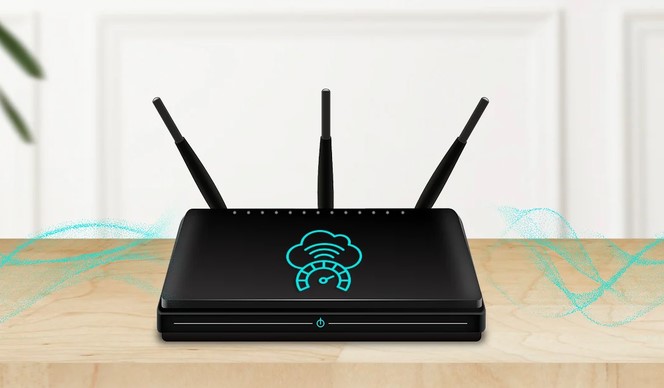
You have the enemy in your sights. You pull the trigger. Your finger definitely clicked the button, but on your screen, your character is suddenly lying face down, and the opponent who was ten feet in front of you is now standing behind your corpse. You didn’t lose because of a lack of skill; you lost to a ghost. In the competitive world of esports, a mere 50-millisecond delay—less than the blink of an eye—is the difference between a champion and a frustrated “rage-quitter.”

As a tech writer who spent years optimizing high-speed data pipelines for remote surgical robotics, I’ve seen how latency in online gaming mirrors the life-and-death stakes of HealthTech. I remember a weekend back in 2024 when I tried to play a competitive shooter on a hotel Wi-Fi. My “Ping” was jumping like a heart rate monitor during a cardio session. That experience reminded me that while speed (bandwidth) is what ISPs sell you, it’s the stability of the connection that actually keeps you in the game.


What is Latency? The “Digital Courier” Analogy

To understand why your game stutters, let’s move away from technical jargon for a moment. Imagine you are playing a game of chess via traditional mail.

  • Bandwidth is the size of the truck delivering your mail. A bigger truck can carry more letters at once.

  • Latency is the time it takes for that truck to drive from your house to your opponent’s house.

You can have the biggest truck in the world (a 1Gbps fiber connection), but if the road is full of potholes or the driver has to take a 500-mile detour, your “move” will still arrive late. In gaming, we measure this “round-trip time” in milliseconds (ms), commonly referred to as your Ping.


Common Causes of Latency in Online Gaming

Understanding the “Why” is the first step to fixing the “How.” After a decade in the industry, I’ve categorized the culprits into three main buckets:

1. Distance and Geographic Routing

The speed of light is fast, but it isn’t instantaneous. If you are playing on a server located in Frankfurt while sitting in Jakarta, your data has to travel through thousands of miles of undersea cables. Every “hop” through a router or switch along that path adds a few milliseconds of delay.

2. Network Congestion and “Bufferbloat”

Think of your home router as a busy intersection. If your sibling is streaming 4K Netflix and your parents are on a Zoom call, your gaming packets are stuck in traffic. Bufferbloat occurs when your router becomes overwhelmed and starts queuing up data, causing a massive spike in latency in online gaming.

3. Hardware Bottlenecks

Sometimes the lag is coming from inside the house. An outdated router, a low-quality Ethernet cable, or even “Input Lag” from your monitor can make it feel like the game is unresponsive, even if your internet connection is technically “fast.”


Technical LSI Terms You Should Know

To sound like a pro (and help your search engine ranking), familiarize yourself with these concepts:

  • Jitter: The variation in your latency. If your ping is 30ms, then 100ms, then 40ms, that’s high jitter, and it’s actually worse than a steady 100ms ping.

  • Packet Loss: When “pieces” of your data never reach the destination. This causes “rubber-banding,” where your character teleports back to a previous position.

  • Netcode: The software in the game itself that tries to “guess” where players are to hide minor lag.

  • Tick Rate: How many times per second the server updates the game state. A 128-tick server feels much smoother than a 64-tick one.


Quick Solutions to Lower Your Ping

If you’re tired of being the “laggy” teammate, follow this checklist to optimize your setup:

Switch to a Wired Connection (Ethernet)

This is the single most effective “Pro” move. Wi-Fi is prone to interference from walls, microwaves, and other devices. A physical Cat6 or Cat7 Ethernet cable provides a dedicated lane for your data, virtually eliminating jitter and local interference.

Optimize Your Router Settings (QoS)

Most modern routers have a feature called Quality of Service (QoS). This allows you to “tell” the router that gaming traffic is a higher priority than a Windows update or a background download. In my home setup, I prioritize my console’s MAC address so I never lose a match just because my phone decided to backup my photos.

Close Background Applications

Apps like Steam, Discord, and Chrome can hog your “Upload” bandwidth. Even a small background upload can cause your ping to skyrocket because it clogs the “return path” of your data.


Scannable Comparison: Wi-Fi vs. Ethernet vs. 5G

Connection Type Average Latency Stability Best For
Ethernet (Cable) 5ms – 20ms Ultra High Competitive Esports
Wi-Fi 6/6E 15ms – 50ms Moderate Casual Gaming
5G Mobile Data 30ms – 80ms Low Mobile Gaming / On-the-go

Expert Advice: Pro Tips and Hidden Warnings

Tips Pro: Choose the Right Server Region

It sounds simple, but many players leave their region set to “Auto.” I’ve seen cases where a player in the UK was accidentally matched in US-East servers because the “Auto” logic was flawed. Manually select the server with the lowest numerical ping to ensure the best experience.

The “Gaming VPN” Myth

Be careful with VPNs claiming to “lower your ping.” While a VPN can sometimes find a more efficient route to a server (bypassing a congested ISP path), most of the time, adding a VPN just adds an extra “stop” for your data, which increases latency. Use them for privacy, but don’t expect them to be a magic fix for a bad ISP.


The Future: 2026 and Beyond

As we move through 2026, we are seeing the rise of AI-Driven Predictive Networking. Some high-end routers now use machine learning to predict when a packet might be lost and send a “duplicate” packet ahead of time. Additionally, the expansion of Edge Computing means that game servers are being placed physically closer to residential areas, potentially bringing the “zero-lag” dream closer to reality for everyone.


Conclusion: Take Control of Your Connection

Mastering latency in online gaming is about understanding that your internet is a pipeline, not a magic wand. By switching to a wired connection, prioritizing your traffic via QoS, and selecting the right servers, you can stop fighting the lag and start fighting your opponents.

In a world where milliseconds determine the victor, don’t let your hardware hold your talent back. Your hardware should be an extension of your reflexes, not a barrier to them.

What’s your current average ping? Have you found a “weird” fix that finally stopped your rubber-banding issues? Let’s talk shop in the comments below—I’m always looking for new ways to squeeze every bit of performance out of a home network!


Enjoyed this deep dive? Subscribe to our newsletter for more technical insights on how to optimize your digital life for 2026.

DNS Troubleshooting: Quick Fixes for Common Issues

Source:https://www.bluehost.com

It’s 10:00 AM on a Monday. You’re about to jump into a high-stakes telehealth consultation or sync a critical database for a clinical trial, and suddenly—nothing. Your browser screams “Server Not Found” or “DNS_PROBE_FINISHED_NXDOMAIN.” Your Wi-Fi bars are full, your router is blinking happily, yet you are effectively invisible to the internet.

In my decade of navigating complex HealthTech infrastructures, I’ve learned one universal truth: It’s almost always DNS. I remember a specific incident in 2024 where an entire wing of a digital clinic lost access to patient records. The panic was palpable. After twenty minutes of frantic hardware checking, the culprit was a single mistyped IP address in a recursive resolver. This experience taught me that while DNS is the “silent backbone” of the web, it’s also the most common point of failure.


What Exactly is DNS? (The Phonebook Analogy)

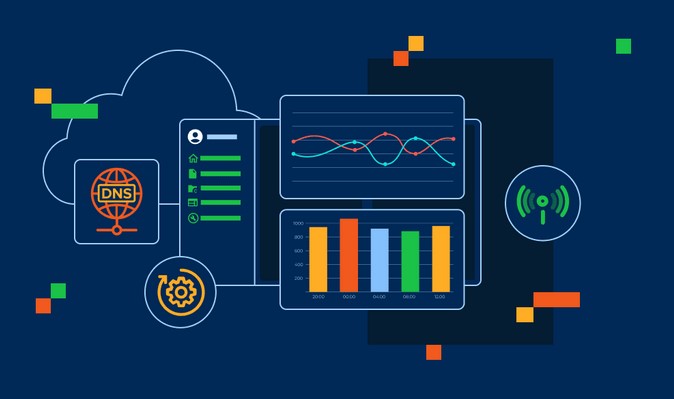
Before we get into dns troubleshooting, let’s demystify what’s happening behind the scenes. Computers don’t speak “English” or “Indonesian”—they speak numbers (IP addresses like 192.168.1.1). Humans, thankfully, speak names like google.com or healthplatform.io.

Think of the Domain Name System (DNS) as the contact list on your smartphone. You don’t memorize your best friend’s 10-digit phone number; you just tap their name. DNS does the same for the internet. When you type a URL, your computer “calls” a DNS server to ask, “Hey, what’s the number for this name?” If that “phonebook” is torn, outdated, or missing, the connection fails—even if the wires are perfectly fine.


Step-by-Step DNS Troubleshooting for Beginners

When the connection drops, don’t reach for the router reset button just yet. Follow this logical flow I use in the field to isolate the problem in seconds.

1. The “Is it Just Me?” Check

First, determine if the website is down or if your local configuration is broken. Try accessing the site on your mobile phone via cellular data (not Wi-Fi). If it works on your phone but not your laptop, you’ve successfully narrowed the problem down to your local network or device.

2. Flush Your DNS Cache

Your computer stores a “mini-phonebook” of recently visited sites to save time. Sometimes, this cache becomes “poisoned” or outdated.

  • On Windows: Open Command Prompt and type ipconfig /flushdns.

  • On Mac: Open Terminal and type sudo killall -HUP mDNSResponder.

I’ve seen this simple 5-second fix solve 70% of “website moved” errors in professional environments.

3. Check the “Hosts” File

This is a “Hidden Warning” for many. The Hosts file is a manual override on your computer. In my early days, I’ve seen developers hardcode an IP address here for testing and forget about it for years. If a website’s IP changes but your Hosts file still points to the old one, you’ll never connect.


Advanced Quick Fixes: Changing Your Resolvers

If flushing the cache didn’t work, the problem likely lies with your Internet Service Provider (ISP). Most ISPs have mediocre DNS servers that get overloaded. Switching to a “Public DNS” is like trading a slow, local operator for a global switchboard.

Switching to Public DNS Servers

You can change your DNS settings in your Network Preferences to these reliable, high-speed options:

  • Google Public DNS: 8.8.8.8 and 8.8.4.4

  • Cloudflare: 1.1.1.1 (My personal favorite for privacy and speed).

  • Cisco OpenDNS: 208.67.222.222

Pro-tip: In HealthTech, we often prefer Cloudflare because it offers some of the lowest Latency (delay) in the industry, which is vital for real-time video consultations.


Identifying Technical “LSI” Culprits

For the intermediate users, here are the technical terms you’ll encounter during dns troubleshooting and what they mean for your connection:

  • TTL (Time to Live): This is the “expiration date” of a DNS record. If a site owner changes their server, you might have to wait for the TTL to expire before your computer sees the new one.

  • Recursive Resolver: This is the server that does the “searching” for you. If this is down, the whole neighborhood loses internet.

  • Authoritative Nameserver: The final boss of DNS. This server holds the “Master Copy” of a website’s IP address.

  • Propagation: The time it takes (up to 48 hours) for a DNS change to spread across the entire globe.


The HealthTech Perspective: Why DNS Security Matters

In my line of work, DNS isn’t just about “connecting”—it’s about Security and Compliance. Hackers often use “DNS Hijacking” to redirect users to a fake login page that looks identical to a hospital’s portal.

We combat this using DNSSEC (Domain Name System Security Extensions). It adds a digital signature to the DNS records, ensuring that the “phonebook” hasn’t been tampered with. If you are handling sensitive data, ensuring your DNS provider supports DNSSEC is not optional; it’s a requirement.


Scannable Troubleshooting Checklist

Use this quick guide when you’re under pressure:

  • [ ] Ping the IP directly: Type ping 8.8.8.8. If it works, but ping google.com fails, it is definitely a DNS issue.

  • [ ] Check your VPN: Sometimes a VPN “leaks” or breaks your DNS settings. Toggle it off to test.

  • [ ] Restart the Browser: Sometimes the browser (like Chrome) has its own internal DNS cache separate from the OS.

  • [ ] Release and Renew IP: Use ipconfig /release then ipconfig /renew to refresh your entire network lease.


Expert Advice: Pro Tips from the Trenches

Tips Pro: Use the “nslookup” Tool

Don’t guess—verify. Open your terminal/command prompt and type nslookup yourwebsite.com. It will tell you exactly which DNS server is giving you the answer and what IP it’s finding. If it returns an error or a weird IP address, you’ve found your smoking gun.

The Router’s Internal Cache

Sometimes, even after flushing your computer’s DNS, the problem persists because your Router has its own cache. If all else fails, a 30-second power-cycle of the router is the “Nuclear Option” that clears its internal memory.


Conclusion: Mastering the Invisible Infrastructure

Mastering dns troubleshooting is like learning how to change a tire. You might not need it every day, but when you’re stuck on the digital highway, it is an essential skill that saves hours of frustration. By understanding that the internet is just a massive network of “names to numbers,” you gain the power to fix your own connection without waiting for a technician.

The next time your screen goes blank, remember: don’t panic. Flush the cache, check your resolvers, and verify the path. You’ve got this.

Have you ever been “ghosted” by a DNS error during an important meeting? Or perhaps you’ve found a weird fix that worked for you? Share your stories and questions in the comments below—let’s troubleshoot together!


Want to stay sharp on all things Tech and Health? Subscribe to our newsletter for deep-dives that keep your systems running smoothly.

Difference Between IPv4 and IPv6 Explained Simply

Source:https://privacycanada.net

The difference between IPv4 and IPv6 is something that many internet users, IT professionals, and network administrators encounter regularly but may not always fully understand. As the digital landscape evolves, so do the protocols that allow devices to communicate with each other across networks. IPv4 (Internet Protocol version 4) and IPv6 (Internet Protocol version 6) are two versions of the Internet Protocol used to identify and locate devices on a network. The distinction between these two protocols is crucial, as IPv4 addresses are running out due to the exponential growth of internet-connected devices, leading to the necessity of IPv6 adoption. In this article, we’ll explore the differences between IPv4 and IPv6, highlighting their features, benefits, and challenges.

Understanding IPv4 and IPv6

To comprehend the difference between IPv4 and IPv6, it is essential to understand what each protocol is designed to do. Both IPv4 and IPv6 serve the same fundamental purpose: they provide a unique address to every device connected to a network, ensuring that data can be routed to the correct destination. However, these two versions of the Internet Protocol differ significantly in terms of address format, size, and additional features.

IPv4: The Foundation of the Internet

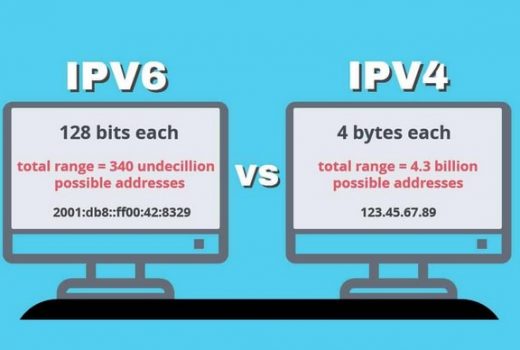
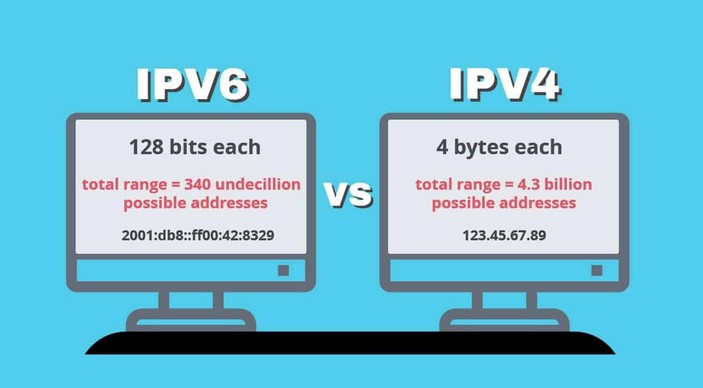
IPv4 was introduced in the early 1980s and became the standard protocol for the internet for decades. It uses a 32-bit address format, which provides a total of approximately 4.3 billion unique addresses. This may seem like a large number, but as the internet grew exponentially in the 21st century, it became clear that IPv4’s address pool would eventually be exhausted. The primary reason for this limitation is the growing number of internet-connected devices, including smartphones, tablets, laptops, IoT (Internet of Things) devices, and much more.

IPv4 addresses are written in four decimal numbers, separated by periods (e.g., 192.168.1.1). This address format is familiar to most users and has been used for decades. However, with the rapid growth of the internet, IPv4 addresses are now being exhausted, and many organizations are using techniques like Network Address Translation (NAT) to manage the shortage. While these solutions work to some extent, they also introduce complexities in network management and routing.

IPv6: The Future of Networking

IPv6 was introduced in the late 1990s as a response to the limitations of IPv4. It uses a 128-bit address format, which allows for a vastly larger pool of unique addresses—around 340 undecillion (3.4 x 10^38) addresses, a number so large it’s nearly impossible to conceptualize. This is more than enough to accommodate the growing number of devices connected to the internet, including future technological developments.

IPv6 addresses are written as eight groups of four hexadecimal digits, separated by colons (e.g., 2001:0db8:85a3:0000:0000:8a2e:0370:7334). This format is more complex than IPv4’s dotted decimal format, but it allows for a far more extensive range of addresses. IPv6 adoption is seen as essential to ensure the continued growth of the internet, as it eliminates the address shortage that has plagued IPv4.

Key Differences Between IPv4 and IPv6

There are several important differences between IPv4 and IPv6, both in terms of their structure and functionality. Let’s break these differences down into a few key areas:

1. Address Length and Format

One of the most noticeable differences between IPv4 and IPv6 is the length and format of their addresses. IPv4 uses a 32-bit address, represented by four numbers separated by periods, while IPv6 uses a 128-bit address, represented by eight groups of hexadecimal numbers separated by colons.

  • IPv4 Address Example: 192.168.0.1
  • IPv6 Address Example: 2001:0db8:85a3:0000:0000:8a2e:0370:7334

This difference in address length directly leads to the vast disparity in the number of available IP addresses between the two protocols. IPv4 supports around 4.3 billion addresses, while IPv6 supports a practically unlimited number, which is a key factor in addressing the global demand for IP addresses.

2. Configuration and Simplification

Another important difference between IPv4 and IPv6 lies in the ease of configuration. IPv4 typically requires manual configuration of IP addresses in certain networks, although technologies like DHCP (Dynamic Host Configuration Protocol) have simplified the process. In contrast, IPv6 comes with automatic address configuration capabilities, making it easier to assign unique addresses to devices without manual intervention. This auto-configuration feature is particularly beneficial for networks with a large number of devices, such as IoT networks.

Furthermore, IPv6 simplifies routing by reducing the need for complex NAT and making address allocation more efficient. This results in improved performance and scalability for large networks.

3. Security Features

IPv6 was designed with security in mind, offering built-in support for IPsec (Internet Protocol Security), which provides encrypted communication between devices on the network. While IPv4 also supports IPsec, it is optional, and its adoption has been inconsistent. With IPv6, IPsec is mandatory, making encrypted communications more reliable and secure by default.

IPv4 vs. IPv6: Which One Should You Use?

The decision of whether to use IPv4 or IPv6 depends on your specific network needs. For organizations and individuals who rely on existing internet infrastructure, IPv4 may still be sufficient for the time being. However, as more devices are connected to the internet and the demand for IP addresses increases, IPv6 will become increasingly important.

The transition from IPv4 to IPv6 is ongoing but gradual. Many modern devices and services are already IPv6-compatible, and the protocol is slowly gaining traction across the internet. In some regions, IPv6 adoption is more widespread, while others are still predominantly reliant on IPv4.

In the future, it is likely that IPv6 will become the standard for most networks due to its scalability and security features. For businesses, particularly those in the tech industry or those that depend heavily on IoT devices, making the switch to IPv6 now could help future-proof their networks and ensure continued growth and innovation.

In conclusion, the difference between IPv4 and IPv6 is rooted in the need for more address space, more efficient networking, and improved security. IPv6 offers a solution to the limitations of IPv4, enabling the continued expansion of the internet and the Internet of Things (IoT). As more devices connect to the internet and IPv4 addresses continue to be exhausted, IPv6 adoption will become increasingly important. Transitioning to IPv6 may take time, but it is an essential step for a more secure and scalable digital future. Understanding the difference between IPv4 and IPv6 is critical for anyone involved in networking, IT management, and the future of the internet.

Software Defined Networking: Transforming Enterprise IT Infrastructure

Source:https://thinkpalm.com

In the rapidly evolving world of enterprise IT, businesses are increasingly adopting technologies that allow them to streamline operations, improve scalability, and enhance security. One such technology that has revolutionized the way organizations manage their networks is Software Defined Networking (SDN). SDN decouples network control from the hardware, providing administrators with more flexibility, centralization, and automation. This transformation allows enterprises to optimize their IT infrastructure, reduce costs, and more easily adapt to new business needs. In this article, we will explore how software defined networking is reshaping the enterprise IT landscape and its key benefits for businesses today.

What is Software Defined Networking (SDN)?

Software Defined Networking (SDN) is an architecture that enables network administrators to manage network services through software applications. The key innovation behind SDN is the separation of the control plane from the data plane. In traditional networking models, each network device (such as routers or switches) operates both the control and data planes. This makes the network architecture rigid and difficult to manage as the infrastructure grows.

SDN, on the other hand, centralizes the control plane by moving it to a software-based controller. The data plane, which handles the actual flow of data through the network, remains in the individual network devices. This separation allows for more efficient network management and increased agility.

By centralizing control, SDN enables network administrators to configure, monitor, and manage network resources through a single interface, even if the physical infrastructure is spread across multiple locations. The software-based controller can automatically update network configurations and policies, making SDN an ideal solution for complex enterprise IT environments.

Key Benefits of Software Defined Networking in Enterprises

1. Enhanced Agility and Flexibility

One of the primary reasons businesses are adopting software defined networking is the increased flexibility it offers. In traditional networks, making changes to the network—such as adding or reconfiguring devices—can be a time-consuming and complicated process. SDN allows administrators to quickly modify the network’s configuration by simply making changes to the software controller.

For enterprises, this means they can rapidly scale their networks, implement new applications, or even optimize traffic routing with minimal effort. The flexibility provided by SDN is particularly valuable for businesses that need to respond quickly to market demands, such as deploying new services or adjusting to increased customer traffic.

Moreover, SDN supports the automation of repetitive tasks, which reduces the manual intervention required for network management. This automation is a significant time-saver and allows network administrators to focus on higher-level strategic tasks.

2. Cost Efficiency and Reduced Hardware Dependency

Traditional networking involves significant hardware investments, including routers, switches, and firewalls. These devices can be costly to purchase, maintain, and upgrade. SDN, however, abstracts the network control from the hardware, allowing businesses to use commodity hardware or cloud-based services instead of relying on proprietary devices.

With SDN, enterprises can deploy virtualized networking services, allowing them to avoid the high costs associated with specialized hardware. Additionally, since SDN allows for central management and optimization, it reduces the need for excessive network monitoring tools and dedicated IT staff, resulting in lower operational costs.

Another key cost-saving factor is the ability of SDN to optimize network traffic dynamically. For example, SDN controllers can prioritize bandwidth for critical applications, reducing latency and improving performance without requiring businesses to invest in additional hardware.

3. Improved Network Security and Control

Security is a major concern for businesses, especially with the increasing number of cyber threats in today’s digital landscape. Software defined networking enhances network security in several ways. First, SDN enables centralized control, allowing administrators to enforce uniform security policies across the network from a single interface. This centralization improves visibility and control, helping IT teams quickly detect and mitigate security breaches.

Additionally, SDN allows for more granular network segmentation, making it easier to isolate sensitive data and applications from other parts of the network. By using SDN’s software controllers, network traffic can be segmented according to specific security requirements, which adds an additional layer of protection against unauthorized access.

Furthermore, SDN’s ability to automate responses to security events—such as isolating compromised devices or redirecting traffic to backup systems—enables faster and more effective responses to security incidents, improving the overall resilience of the network.

Key Use Cases for Software Defined Networking in Enterprise IT

1. Cloud Integration and Hybrid Networks

As businesses increasingly adopt cloud services, SDN is proving to be a critical component in managing hybrid cloud environments. SDN enables enterprises to integrate their on-premises data centers with public and private clouds seamlessly. The ability to manage both traditional and cloud-based resources from a single interface ensures that businesses can scale their infrastructure according to demand.

Moreover, SDN can provide optimized routing for cloud-based applications, ensuring that data traffic is routed through the most efficient path, thereby reducing latency and improving the user experience.

2. Network Virtualization and Software-Defined WAN (SD-WAN)

Network virtualization and SD-WAN are some of the most significant use cases for software defined networking in enterprise IT. SD-WAN uses SDN principles to connect branch offices, remote workers, and data centers securely over the internet, replacing expensive MPLS circuits.

By using SD-WAN, enterprises can prioritize traffic, optimize bandwidth, and reduce network congestion without relying on costly dedicated connections. SD-WAN also allows for faster deployment of new sites and more agile network management, enabling businesses to quickly adapt to changing network requirements.

Network virtualization, which abstracts physical network resources into virtual resources, is another benefit of SDN. It enables enterprises to create virtual networks for different business units or applications, isolating traffic and optimizing resource allocation.

3. Data Center Optimization

For businesses with large data centers, software defined networking provides a way to optimize resource allocation and enhance overall network performance. SDN controllers can dynamically allocate bandwidth, adjust network topology, and prioritize traffic to ensure that the data center operates at peak efficiency. This is particularly important as data center demands grow, especially with the rise of data-heavy applications like big data analytics, artificial intelligence, and machine learning.

By leveraging SDN for data center optimization, enterprises can significantly reduce the costs associated with network upgrades and maintenance. The centralized control of SDN also makes it easier to monitor performance and proactively address potential bottlenecks before they become major issues.

Overcoming Challenges in Implementing SDN

While SDN offers many benefits, its implementation in enterprise environments can present challenges. These challenges include the need for specialized knowledge in SDN technologies, integration with legacy systems, and potential disruptions during the initial deployment phase. Businesses must also carefully consider the security implications of centralizing control of their entire network.

To overcome these challenges, businesses should invest in training their IT teams in SDN technologies and work closely with vendors to ensure a smooth transition. It is also important to implement SDN incrementally, starting with specific use cases or regions within the enterprise, before scaling the technology across the entire network.

As enterprises continue to embrace digital transformation, software defined networking is playing a pivotal role in reshaping IT infrastructure. The increased flexibility, cost efficiency, security, and network optimization provided by SDN are enabling businesses to meet the demands of a fast-paced, interconnected world. As cloud computing, data analytics, and hybrid networks become more prevalent, SDN will be an essential component in ensuring that enterprises can scale, adapt, and secure their networks with ease. For companies looking to stay ahead of the curve, adopting SDN is no longer just a technical choice—it is a strategic imperative that will help them unlock new possibilities in their IT infrastructure.